
Until now, the only way to see Kaeso's console was to install Kaeso. That is a lot to ask of someone who first wants to know what it looks like. So there is now a live demo at demo.kaeso.app (opens in a new tab): a real Kaeso install, running the newest release with sample data, open to anyone.
Open it, choose Explore the demo, and you are in. There is no account to create, no email to confirm and nothing to install.
What's inside
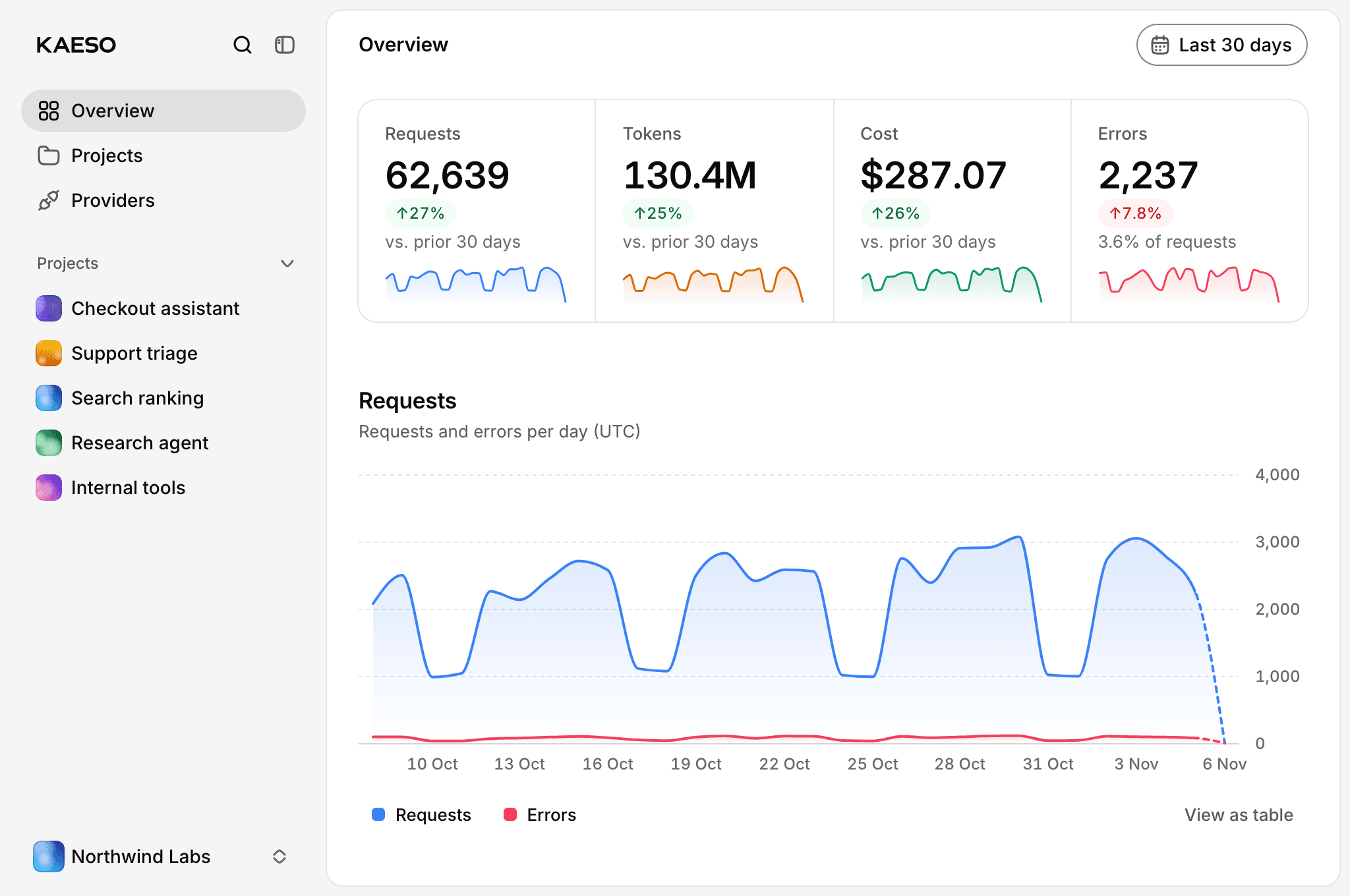
You arrive as Ada Okafor, the owner of Northwind Labs, a made-up company that runs its AI features through Kaeso. Everything you see comes from the sample data the console is developed against:
- Five projects: Checkout assistant, Support triage, Search ranking, Research agent and Internal tools, each with its own models, keys and usage.
- Six people in different roles, from owner and admin to developer and member.
- Provider keys for Anthropic and OpenAI. They are placeholders and never reach a provider.
- 70 days of usage that always end yesterday, so the charts read like those of an install in daily use.
Where to look
A few pages show most of what Kaeso does.
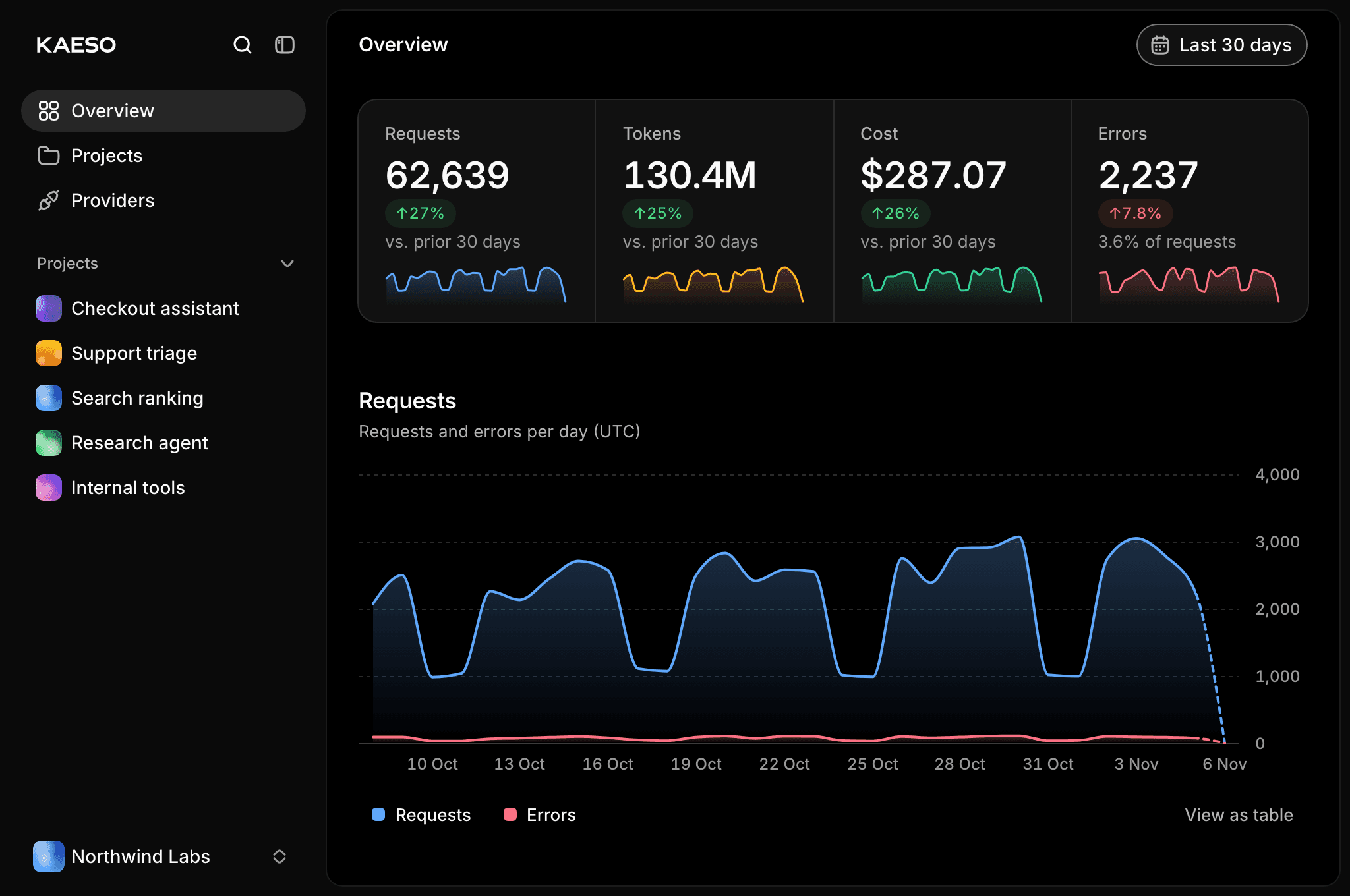
Overview. Requests, tokens, cost and errors across the organization, each compared with the period before, then charts by day. Change the range at the top, or open a project in the sidebar for its own numbers.
Request logs. In a project, every request has a row with its model, provider, status, tokens and cost. Open one to see what was sent, what came back, how long it took and which key sent it. Failed requests are there too, such as a provider error or a rate limit, each with its reason.
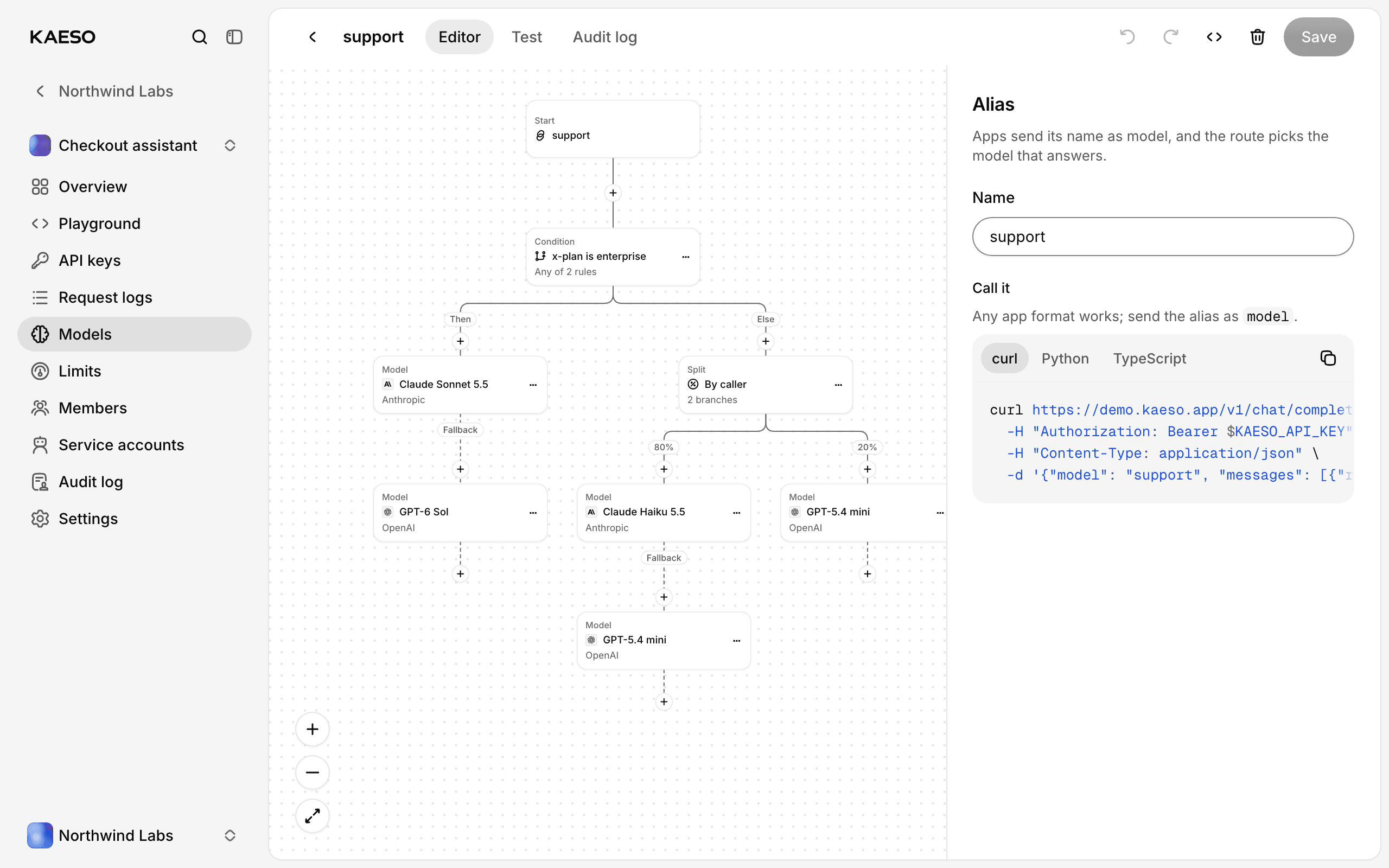
Models. The Catalogue lists the models a project may call, with prices and context windows from KPMR (opens in a new tab), the Kaeso Provider & Model Registry. Aliases are names that apps send in place of a model; Kaeso then decides which model answers.
Limits. Checkout assistant has a hard spend budget of $1,500 a month and a rate limit of 600 requests a minute, and its checkout-worker service account has a soft daily token budget. Each limit shows how much of it is used and when it resets.
Members and Audit log. Who may do what in each project, and what changed, when and by whom.
One alias, step by step
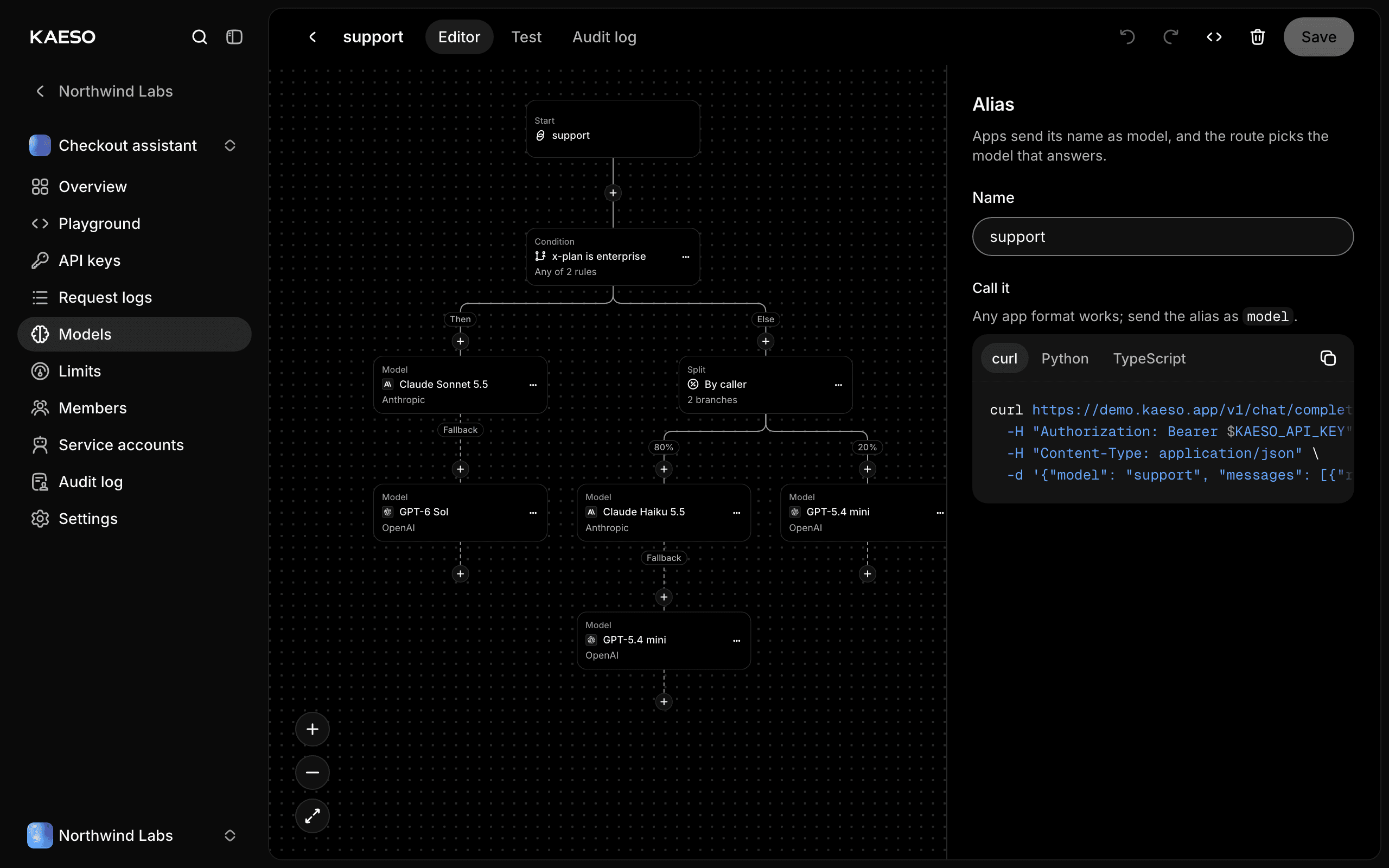
The support alias in Checkout assistant shows how a route reads in Kaeso. In the project, open Models, then Aliases, then support. The app sends only "model": "support"; the route does the rest:
- A request with the header
x-plan: enterprise, or one with at least 100,000 input tokens, goes to Claude Sonnet 5.5. If Anthropic is unavailable, the request hits a rate limit or the model can't take something in it, GPT-6 Sol answers instead. - Every other request is split by caller. Each caller, usually an API key, stays on one branch: about four in five get Claude Haiku 5.5, with GPT-5.4 mini as its fallback, and the rest get GPT-5.4 mini.
The other three aliases show simpler shapes: fast names a single model, sturdy is a chain of fallbacks, and per-user splits by the x-user-id header.
How the demo behaves
The demo is the console you would run yourself, with one difference: nothing in it can be changed.
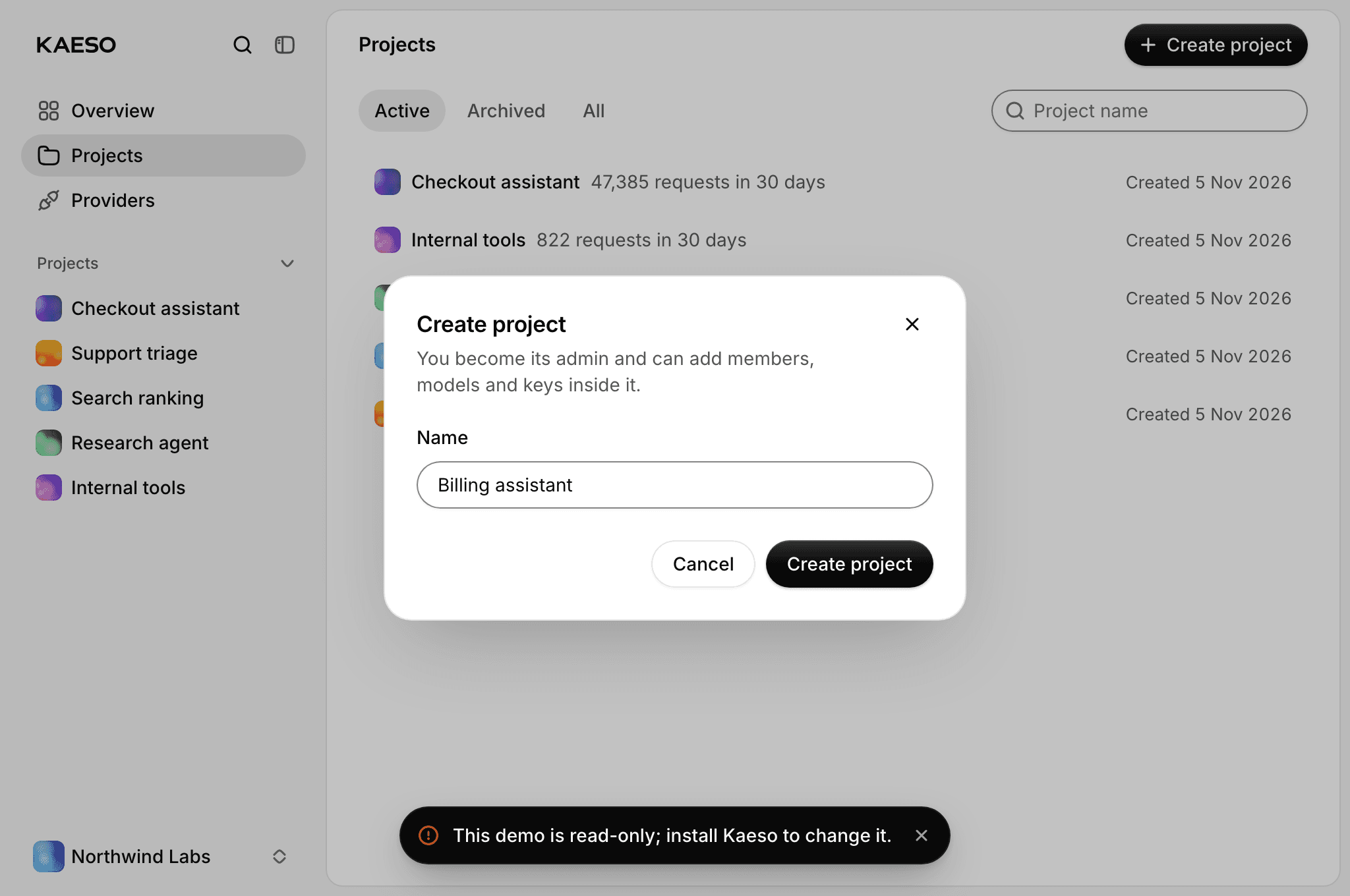
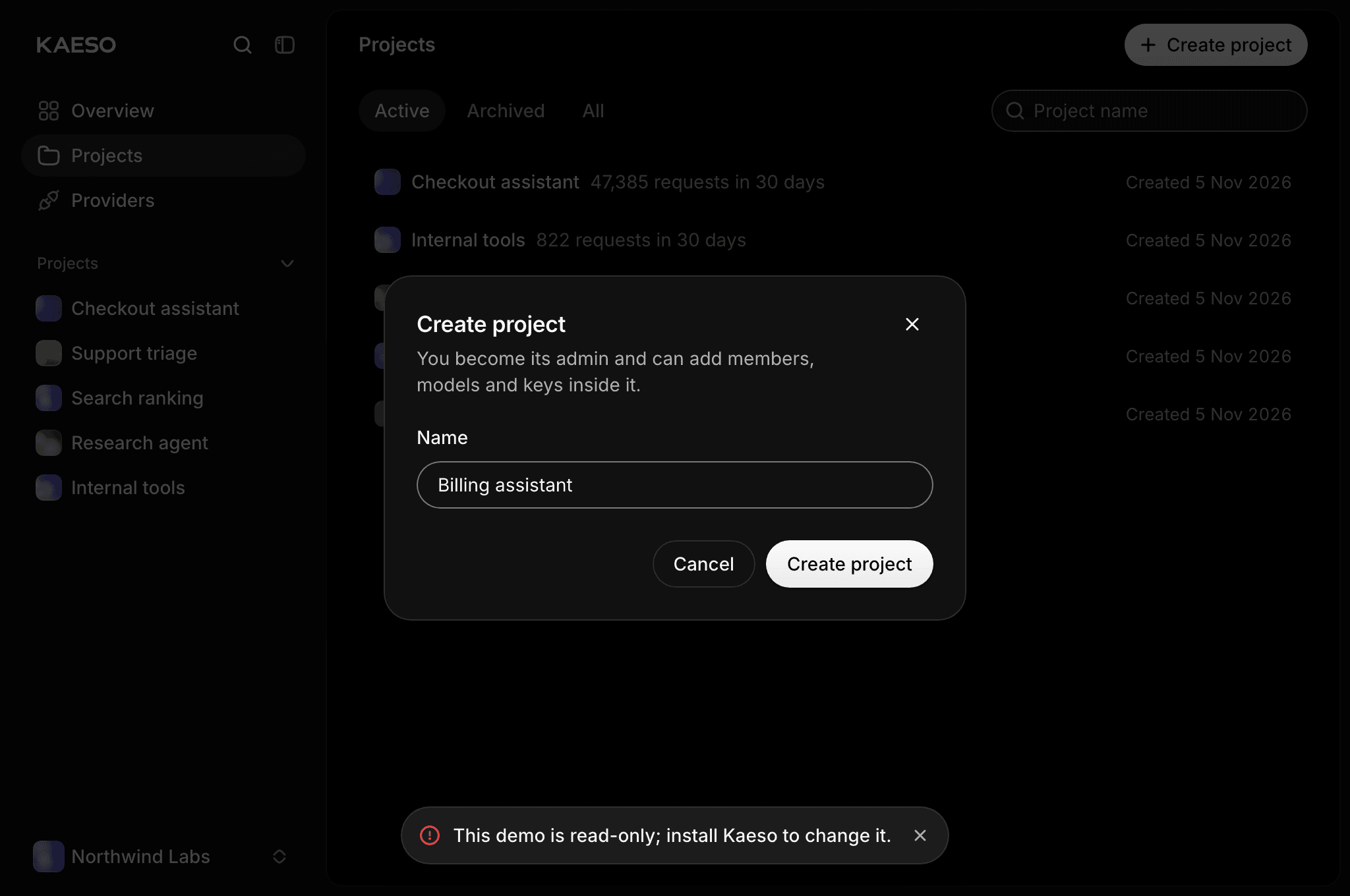
- Every change is refused. Creating a project, adding a provider key, inviting someone or editing a route all end with the same message: "This demo is read-only; install Kaeso to change it." Dialogs and forms open as they do in your own install, so you can see each step; only saving stops.
- No model is ever called. The demo's model API and its MCP server are off. The playground answers every prompt with the read-only message, and nothing goes to Anthropic or OpenAI.
- Everyone is Ada. Every visitor is signed in as the same sample user, and nothing anyone does is saved.
- It starts fresh every night. The demo goes back to its sample data and moves every date forward, so the last day of usage is always yesterday.
- It runs the newest release. The same nightly run updates the demo to the newest Kaeso release, release candidates included, after checking the release's signed build provenance. It installs only what Kaeso's own release workflow built. At the time of writing, that is 0.6.0-rc.4.
Requests that would change something are stopped before they reach the gateway, and the gateway would refuse them anyway. Each visitor's requests are also rate-limited, so one person can't slow the demo down for everyone else.
What the demo doesn't show
A read-only console can't show everything:
- Your own requests. To watch a request appear in the logs a moment after you send it, you need your own install. The recording at the top of Kaeso's README (opens in a new tab) shows that path from start to finish.
- Signing in. Sign-in links by email, passwords, two-factor authentication and single sign-on are skipped; the demo signs you in directly.
- Speed. The demo runs with modest resources on a shared server, so it says nothing about Kaeso's overhead. Measure that on your own install, in the gateway's metrics.
Run a demo of your own
Demo mode is a setting, not a separate build, so you can turn an install of your own into a demo. Fill it with an organization, projects and usage, then name one of its users as the demo user:
The sign-in page then offers Explore the demo, which signs every visitor in as that user. Kaeso refuses every change with a message that the install is a read-only demo, and turns off the model API and MCP, so nothing can be sent through it. Remove the setting to make the install usable again.
Give the demo an install of its own, with sample data only. Every visitor sees everything the demo user can see, including request logs and their content.
A demo of your own can help when colleagues want to look around before you connect real provider keys, or when you want to show Kaeso to someone without creating an account for them. Demo mode is new in Kaeso 0.6.0, and its release candidates have it from 0.6.0-rc.4 on.
Try it
demo.kaeso.app (opens in a new tab) is open now. When you want to see your own requests, install Kaeso (opens in a new tab) on a server of yours. If you are coming from LiteLLM, the migration guide (opens in a new tab) takes you through it. And if something in the demo is missing or unclear, tell us (opens in a new tab).