Introducing the MCP portal
Every Kaeso project now has an MCP portal. Connect your organization's MCP servers once, choose which tools each project offers, and let claude.ai, ChatGPT, Cursor and your own agents call them with Kaeso's sign-in, rights, limits and logs.
- Published
- Reading time
- 4 min
- Author
- Kaeso Team

Agents are only as useful as the tools they can reach, and the Model Context Protocol has made those tools easy to offer: a ticket system, a code host, a database or a search index, each behind an MCP server. Easy to offer is not the same as easy to govern. Every client connects to every server on its own, with its own copy of a token, and nobody can say afterwards which agent called what, for whom, and with which arguments.
Kaeso 0.6.0 adds an MCP portal to every project. It does for tools what Kaeso already does for models: one address, one sign-in, rights per person and key, limits, and a log of every call.
One address per project
A project's portal answers at /mcp/<project id> on your install's domain. Behind it sit the MCP servers the organization connected and the project chose. A client sees one MCP server with all the tools it may call; Kaeso does the rest:
- It checks who is calling, and whether they may call this tool.
- It applies the project's tool call rate.
- It signs in to the right server, with the shared connection or the caller's own.
- It calls the tool, passes the answer back, and logs the call.
Each server has a handle, such as orders, that prefixes its tools for clients, so a server's get_order becomes orders__get_order. Two servers can offer a tool of the same name without clashing.
Connect a server once
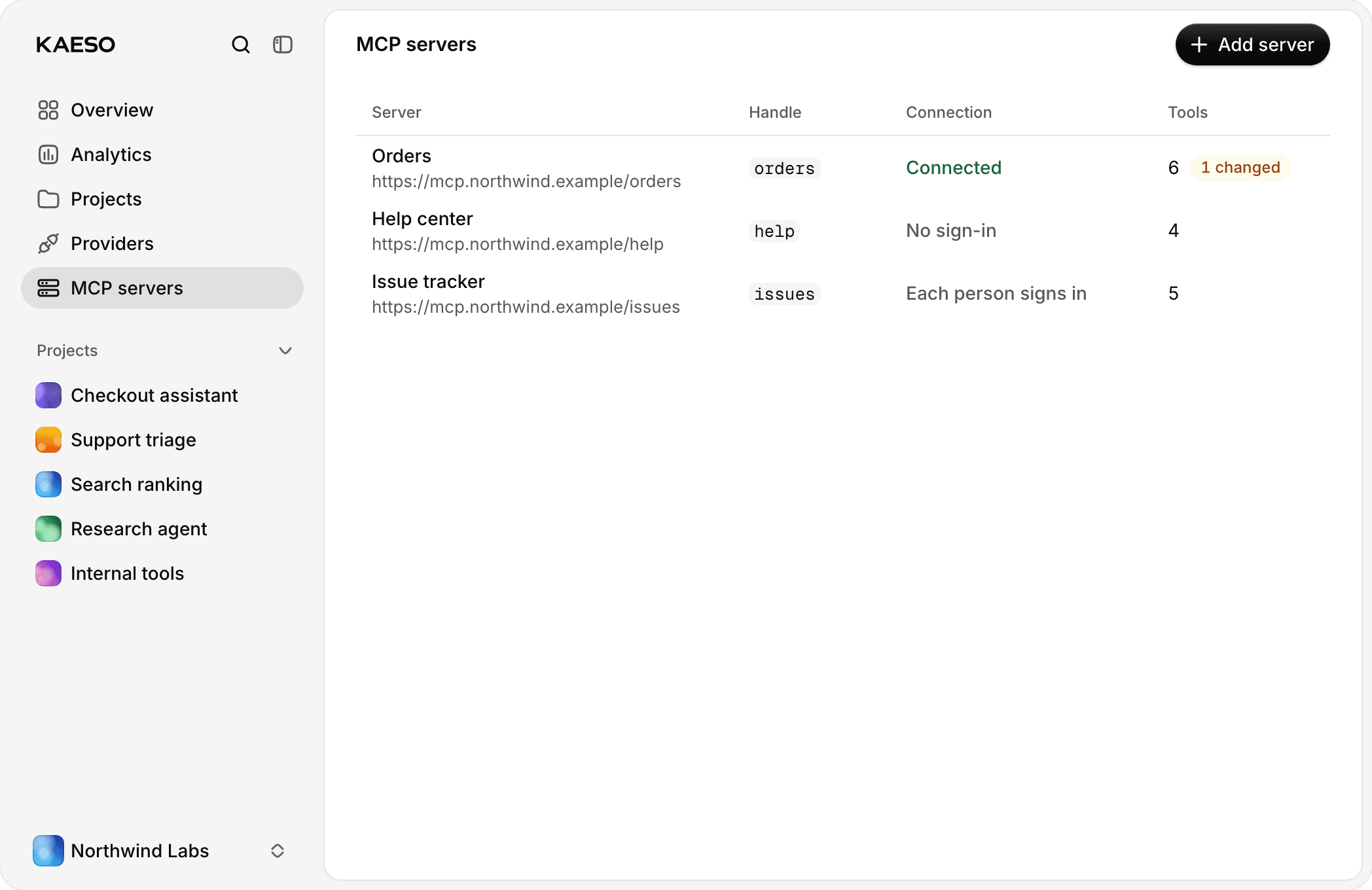
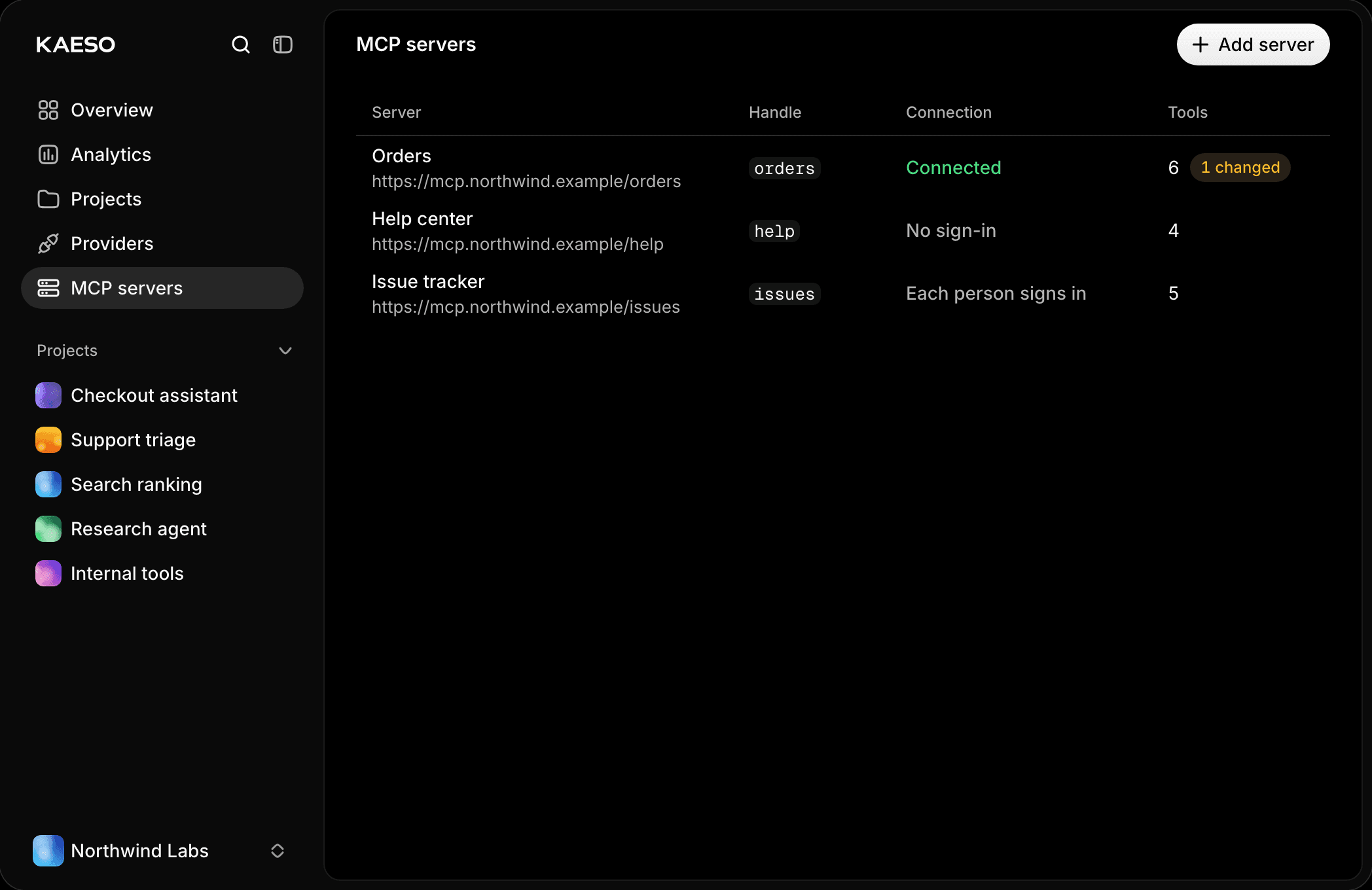
An admin adds servers under Organization › MCP servers. Kaeso talks to remote servers over Streamable HTTP and speaks every protocol version from 2025-03-26 to 2026-07-28. It signs in in one of three ways:
A connection is either shared, so every caller uses one account, or personal: each person connects their own account under Account › Connections, and a server's tools work for them only once they have. Secrets and tokens are sealed with the install's master key, and OAuth tokens are renewed before they run out. When someone leaves the organization, their connections and portal grants go with them.
Kaeso reaches private networks only when mcp_servers.allowed_networks lists them, so a server address can't be turned against your own infrastructure.
Every tool off until someone turns it on
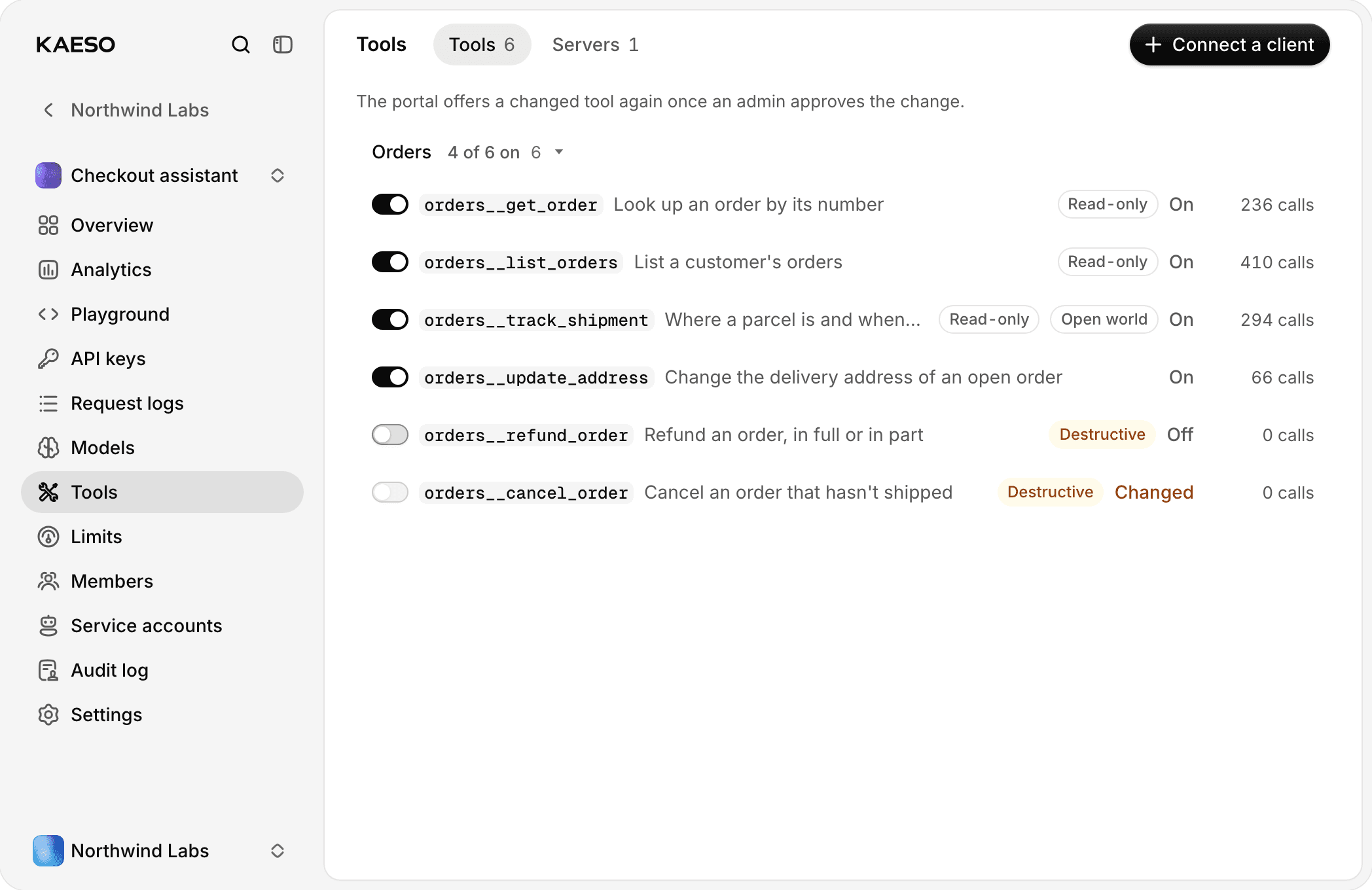
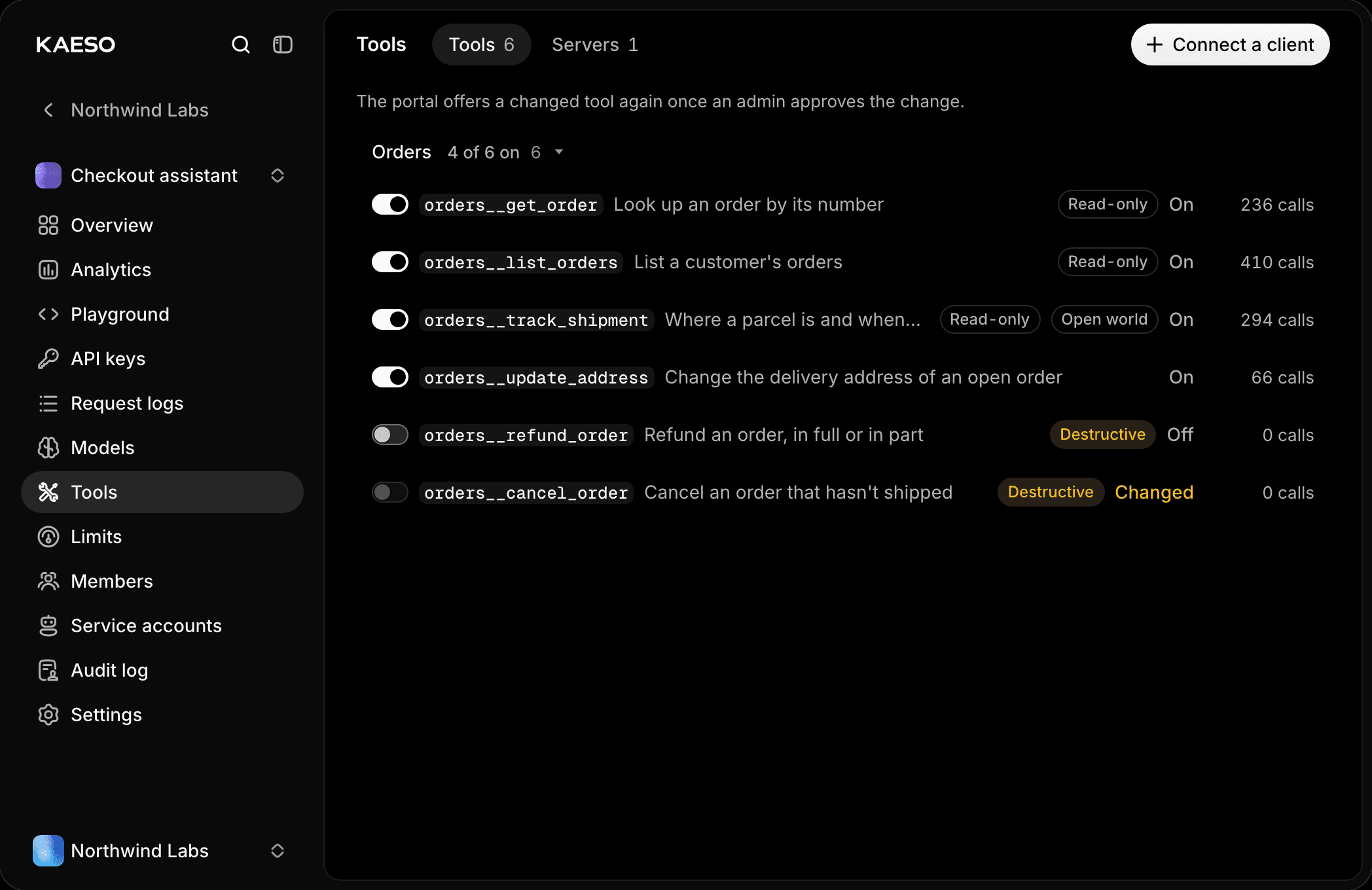
A project chooses which servers it uses under Project › Tools, and a server it starts using has every tool off. Nothing reaches a client until someone turns a tool on, one at a time or a whole server at once. The same tab sets who may call which tools, lists the clients that are connected and disconnects them.
A caller needs three things to see a tool:
- The
tools.useright in the project, from their role. - Tool access that includes the tool. It covers every tool by default, and can be narrowed for a member, a service account or a key.
- For an API key, the Tools ability, one of the three checkboxes when you create a key.
Changed tools wait for review
An MCP tool is its name, description and schemas, and a model reads all of them. A changed description can tell a model to do something else entirely, which makes a silent change on a server you don't control a risk.
Kaeso keeps a hash of each tool's definition and asks every server for its tools every 15 minutes, or at mcp_servers.sync_interval. When a definition changes, the server's policy decides:
hold, the default, takes the tool out of every portal until an admin reviews the change, with a diff, and approves it.acceptoffers the new definition at once, for servers you run yourself.
Rejecting a tool switches it off in every project.
Clients sign in as people
Your own app or agent calls a portal with a project API key that has the Tools ability. Any MCP client can list the tools:
Clients such as claude.ai, ChatGPT and Cursor sign in as a person instead. Give them the portal's address; they find Kaeso's sign-in from its first answer, identify themselves with a client ID metadata document or register, and open the browser. The person sees a consent page that sums up the client's tools per server, and chooses Authorize.
From then on the client acts as that person, with their tool access. It meets the organization's two-factor and single sign-on rules, its tokens work only at the portal they were issued for, and Disconnect under Tools ends them at once. Archiving the project, scheduling the organization for deletion or signing out everywhere ends them too.
Limits and logs
A tool_call_rate limit caps calls per sliding minute for a project, a member or a key; a call over it gets HTTP 429 with Retry-After. Every call appears in Request logs › Tools with its status, its time and, when the project keeps content, its arguments and answer. The Tools tab updates live, filters like the Models tab, and exports to CSV or JSON Lines. Usage and the project overview count calls and errors per day.
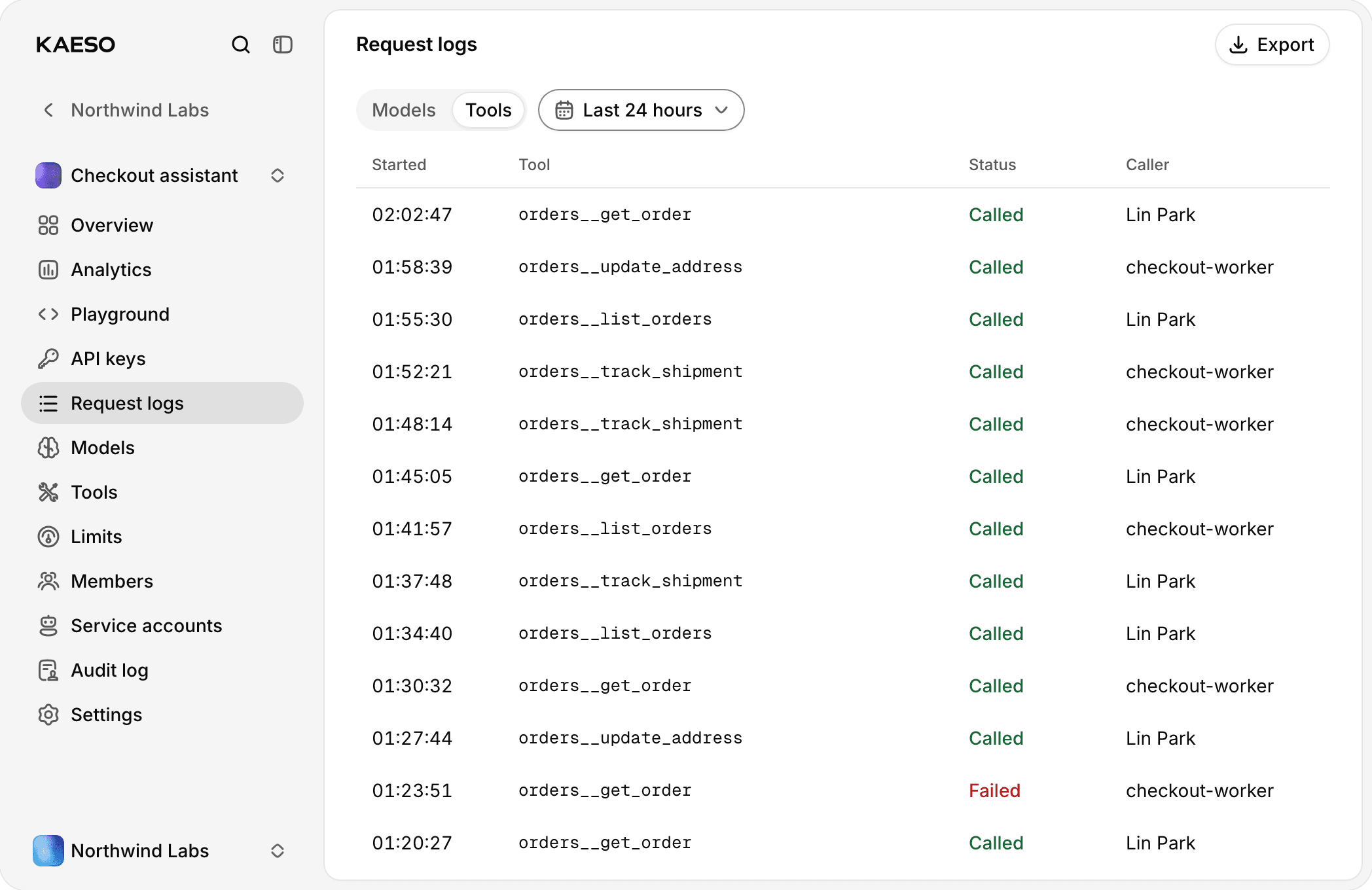
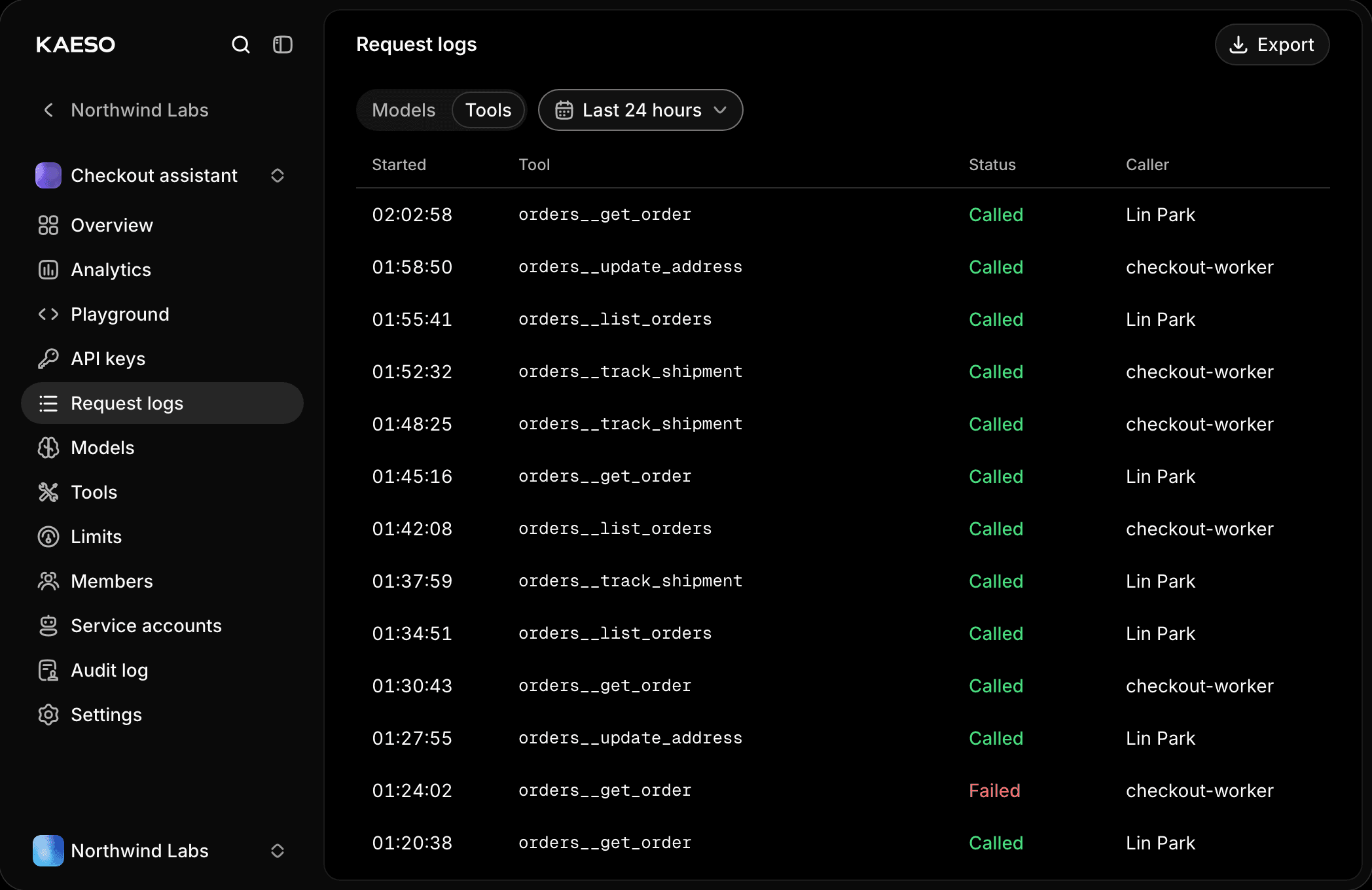
When something goes wrong, the client gets a clear answer and the log says why:
Get started
Update to Kaeso 0.6.0, open Organization › MCP servers and add a server. Then turn on a tool in a project, and connect a client to the project's portal. The docs cover each step: the MCP portal (opens in a new tab), MCP servers (opens in a new tab) and the portal API (opens in a new tab).
The portal is one of the larger additions of Kaeso 0.6. If you run tools that it should handle and doesn't, tell us.
By Kaeso Team